
Magento
Findalo for Magento: official module on the Adobe Commerce Marketplace
· 4 min read · By Ray Rodríguez, founder of Findalo
The Findalo module for Magento 2 and Adobe Commerce is published on the Adobe Commerce Marketplace, Adobe's official extension marketplace. You install it with Composer, like every other Marketplace extension. This post covers where it's published, what it needs, how to install it and how to connect the store.
Where it's published
The official listing is Findalo Search on the Adobe Commerce Marketplace. To get there, every version goes through two Adobe reviews: a technical one, which includes manual testing on a Magento install, and a review of the listing itself. The module passed both and has been published since October 2026.
The module is free. What you pay for is the search itself, which is a Findalo service with its own plans. Signing up is free and needs no card.
What it needs
Magento 2.4 or Adobe Commerce (Open Source, on-premise and cloud) and PHP 8.2, 8.3, 8.4 or 8.5. It's compatible with Hyvä and with headless storefronts.
What changes in your store
Your theme's search icon now opens Findalo. From there:
- It finds products even when they're misspelled. Typos and missing accents still bring up the product.
- Filters with nothing to set up. They come straight from the catalog: categories, price and your products' attributes.
- Each store view, separately. In a multi-store setup, the module sends each store view's catalog and keeps it up to date on its own.
- Search by meaning. From the Pro plan up, the search understands what the shopper is looking for even when they don't use the words on the product page.
How to install it
Add the extension to your Marketplace account and install it with Composer. Your repo.magento.com keys are the ones from your Adobe account:
composer require findalo/magento-search
bin/magento module:enable Findalo_Search
bin/magento setup:upgrade
bin/magento cache:flush
If you don't use Composer, you can download the ZIP from your Findalo panel, under Integration → Magento, and unzip it into app/code/Findalo/Search. Use one route or the other, never both at once.
How to connect it
- In the Magento admin, go to Findalo → Configuration in the side menu.
- Click Connect with findalo. Your Findalo panel opens: sign in (or create your account right there), pick the search engine and click Connect this store.
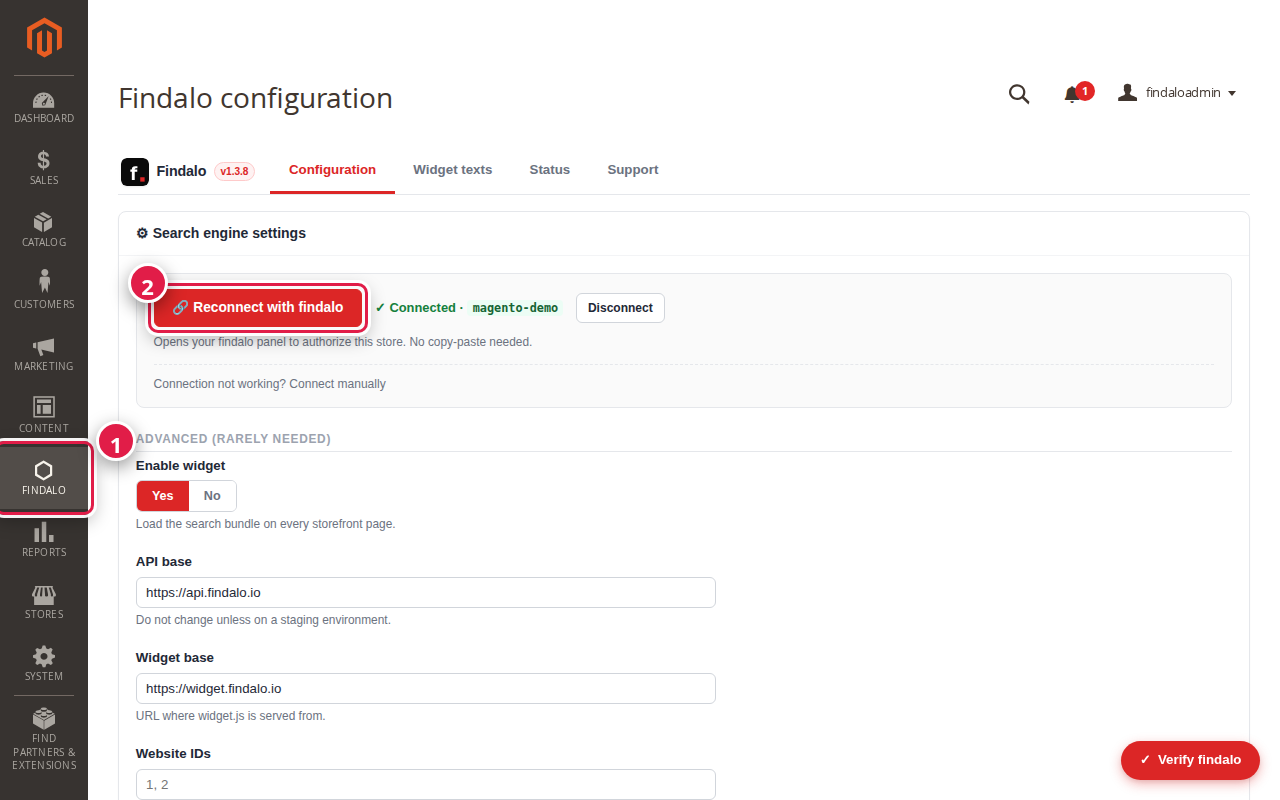
You come back to the module already connected: the credential travels server to server and you never copy it anywhere. The steps are explained in more detail in the documentation.
Try it before you install anything
We have a demo store running on a real Magento 2.4 install, with the module enabled: magento.findalo.io. Click the search icon and search for whatever you like, typos included.
Keep reading
-
Purchase intent: let the search find "the love stone" even if the product page doesn't say so
For every product and in every language, the AI writes the phrases a shopper would use to ask for it: what it's for and what people call it. Real examples from a minerals shop, a medical instruments catalogue in German and a chain of shoe shops. Included from Pro up, with nothing to configure.
-
Free 1-month trial: what's included and what happens when it ends
200 products, 1,000 searches in total and no card. When the month or the searches run out, search stops responding and, if you don't move to a paid plan, the account is deleted 30 days later. What we warn you about, how to continue with Starter or Pro (14-day free trial), and when the trial won't help you decide.