
Shopware
Findalo for Shopware: where the app stands today
· 4 min read · By Ray Rodríguez, founder of Findalo
Findalo works on Shopware 6 through a native app. Because it's an app and not a plugin, it adds no PHP code to your store: it installs as an extension, reads the catalog through the Shopware API and puts the search in the Storefront. This post covers where it stands today: where you download it, how to link it and also where it isn't published yet.
Where to download it
You download the app from your Findalo panel, under Integration → Shopware → Download ZIP.
It isn't in the Shopware Store yet, Shopware's official extension store. When it's published there, we'll say so in a new post. Until then, the panel is the only place we distribute it from.
The app is free. What you pay for is the search itself, which is a Findalo service with its own plans. Signing up is free and needs no card.
Which Shopware it works with
Shopware 6.6 and 6.7. The store has to be reachable over HTTPS from the internet, because Findalo reads the catalog through the Admin API.
How to install it
- Download the ZIP from your panel.
- In the Shopware admin, go to Extensions → My extensions → Upload extension, install the app and activate it, accepting the permissions: read access to the catalog and the configuration.
On activation, the app registers with Findalo by itself.
How to link it to your account
- Open Extensions → Findalo, enter the email of your Findalo account and click Enviar código (send code).
- Type the six-digit code you receive by email and click Verificar y vincular (verify and link).
- In the channel table, assign each Storefront sales channel to a search engine in your account. Only the channel you assign is connected.
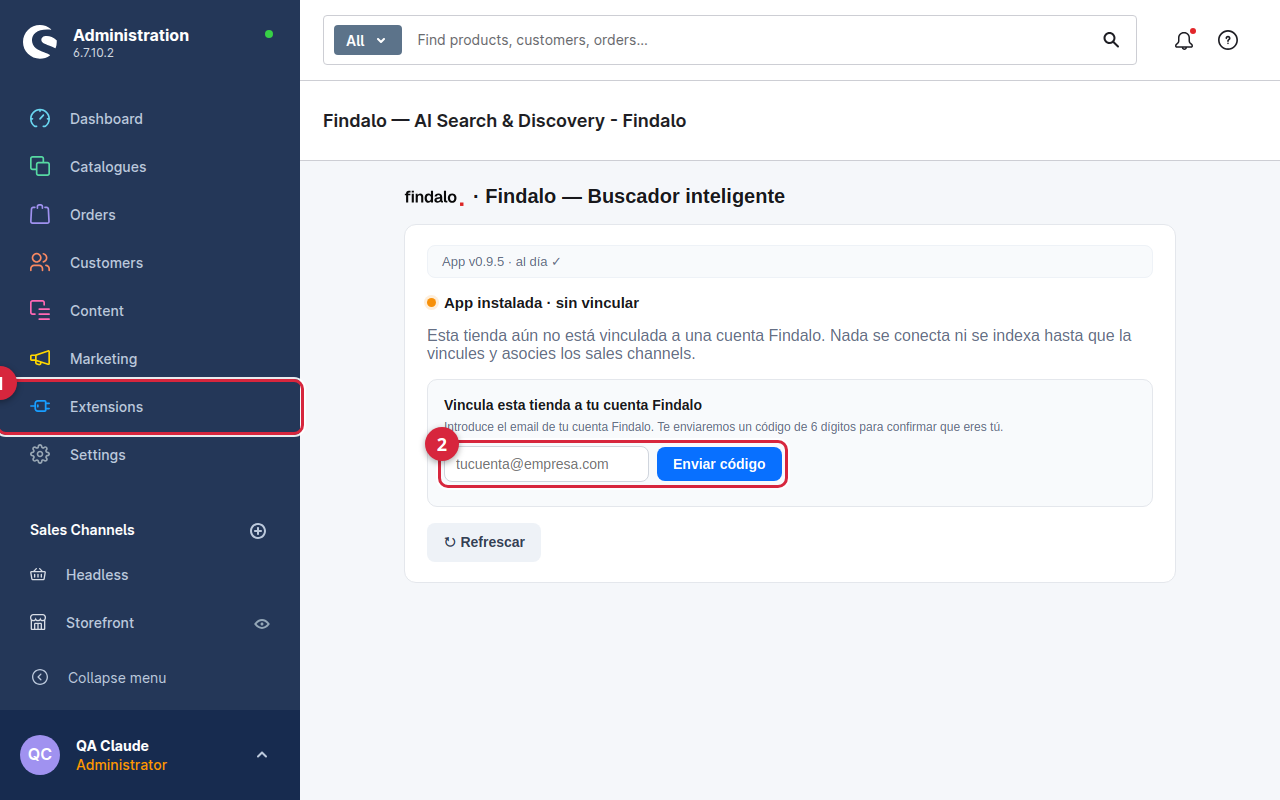
There are no tokens to copy. The whole thing takes about ten minutes, and the steps are explained in more detail in the documentation.
What happens next
The catalog syncs through the Admin API and changes arrive on their own. The search appears in the Storefront without touching the theme: reload your store and click the search icon. On the app screen you see, for each channel, the products sent and the last sync, and the Re-sincronizar (re-sync) button forces a push.
Try it before you install anything
We have a demo store running on a real Shopware 6 install, with the app enabled: shopware.findalo.io. Click the search icon and search for whatever you like, typos included.
Keep reading
-
Purchase intent: let the search find "the love stone" even if the product page doesn't say so
For every product and in every language, the AI writes the phrases a shopper would use to ask for it: what it's for and what people call it. Real examples from a minerals shop, a medical instruments catalogue in German and a chain of shoe shops. Included from Pro up, with nothing to configure.
-
Free 1-month trial: what's included and what happens when it ends
200 products, 1,000 searches in total and no card. When the month or the searches run out, search stops responding and, if you don't move to a paid plan, the account is deleted 30 days later. What we warn you about, how to continue with Starter or Pro (14-day free trial), and when the trial won't help you decide.